Change the story text
Type right on the page, check that it fits, change the font and go back if you change your mind.
The editor is in My stories: open the story and choose “Write” mode. Changing the text uses no regenerations, and you can do it as many times as you like.
Type on the page
Tap the text of any scene and type. It saves as you go, without pressing anything. A meter tells you whether it fits (“Fits on the page”, or how many lines are still free) or whether there is too much text. If there is, the PDF would cut off the first and last lines: trim the text or move a sentence to another scene.
If you don’t like a change, “Undo my changes on this page” puts the page back the way it was.
In an educational story, the learning goals, what was learned and questions pages are edited in a separate window, with “Edit the learning goals”.
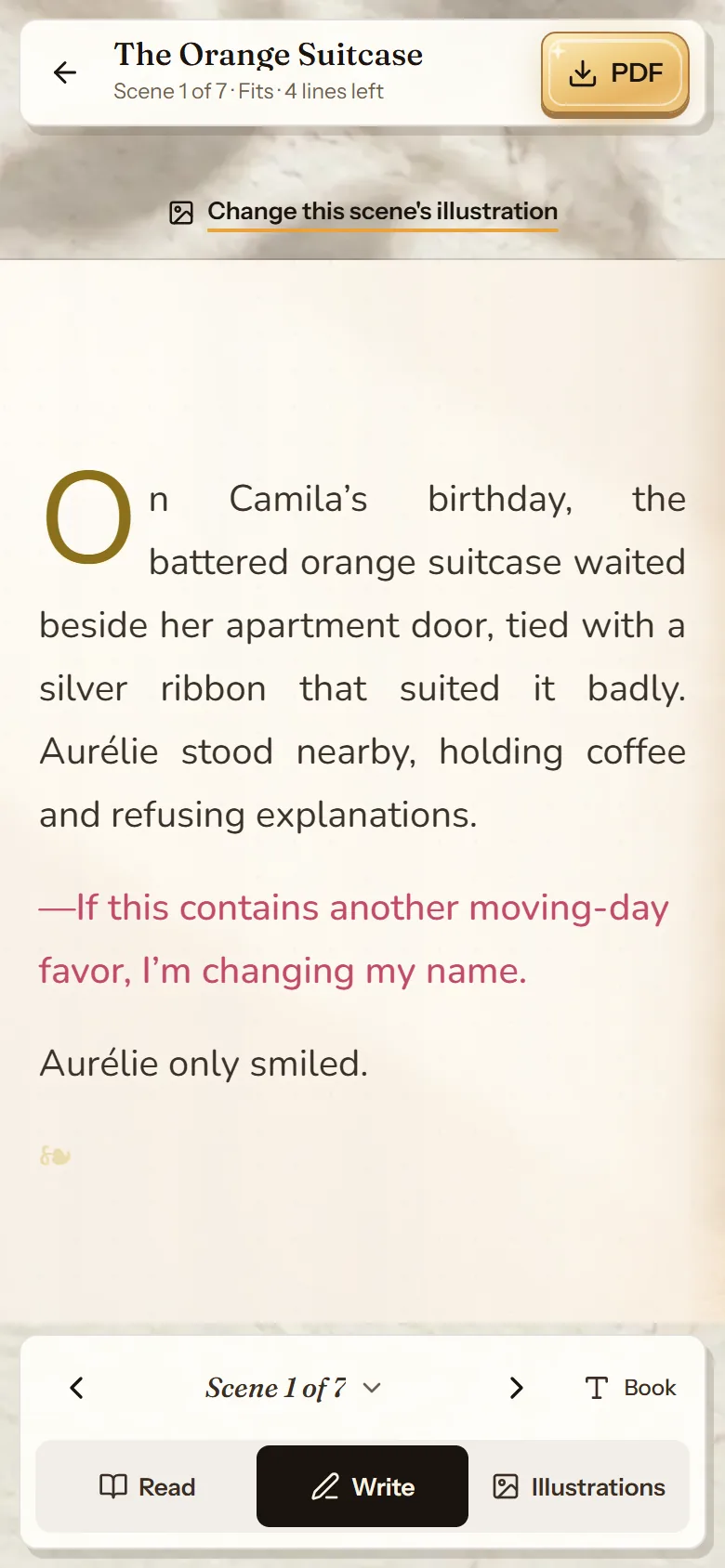
- Whether it fits and how many lines are free.
- Read, Write or Illustrations.
- Change the illustration for this scene.
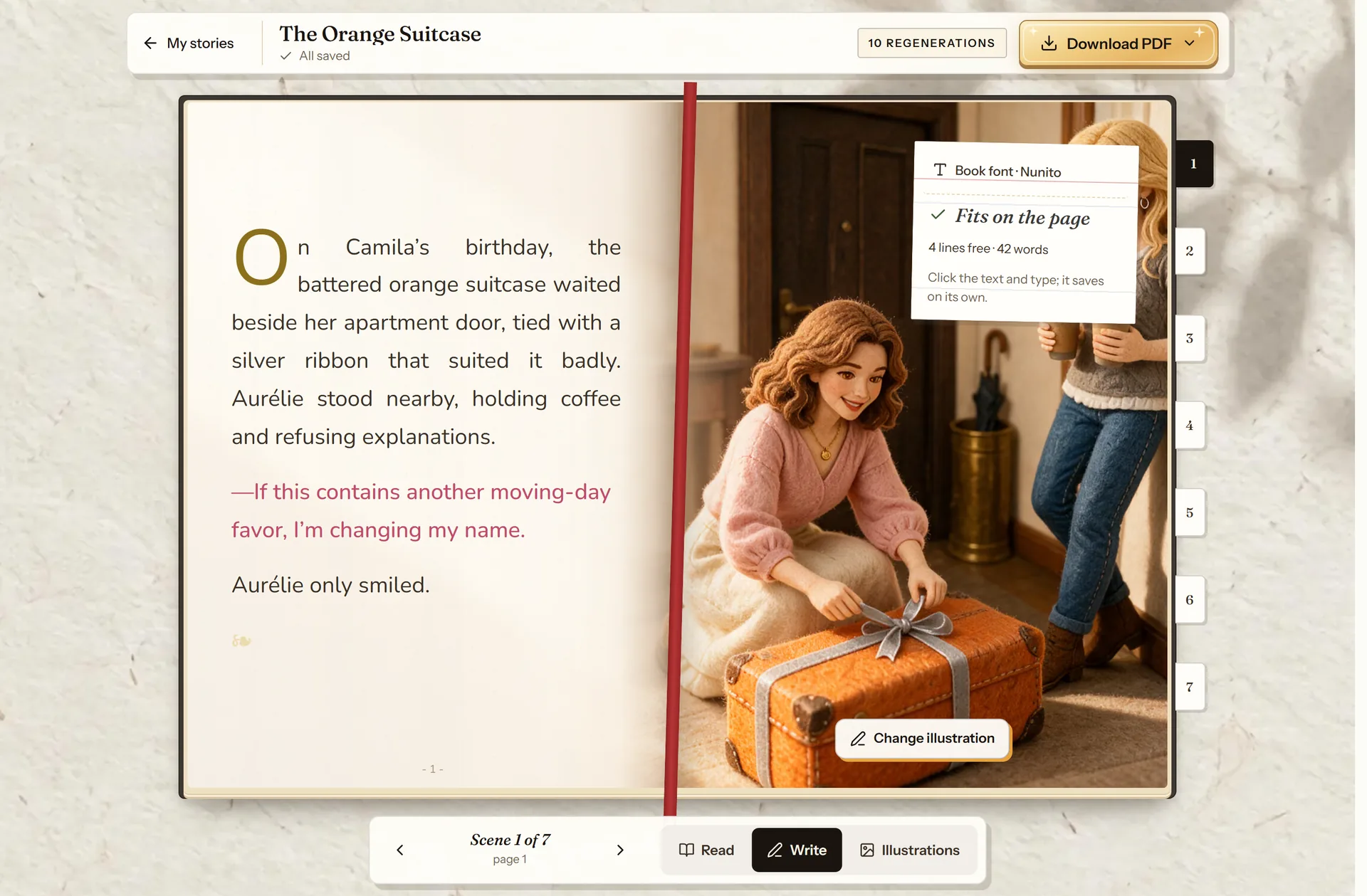
- The meter: whether it fits and how many lines are free.
- Read, Write or Illustrations.
- “Update PDF” with your changes.
- Jump to any scene.
The font
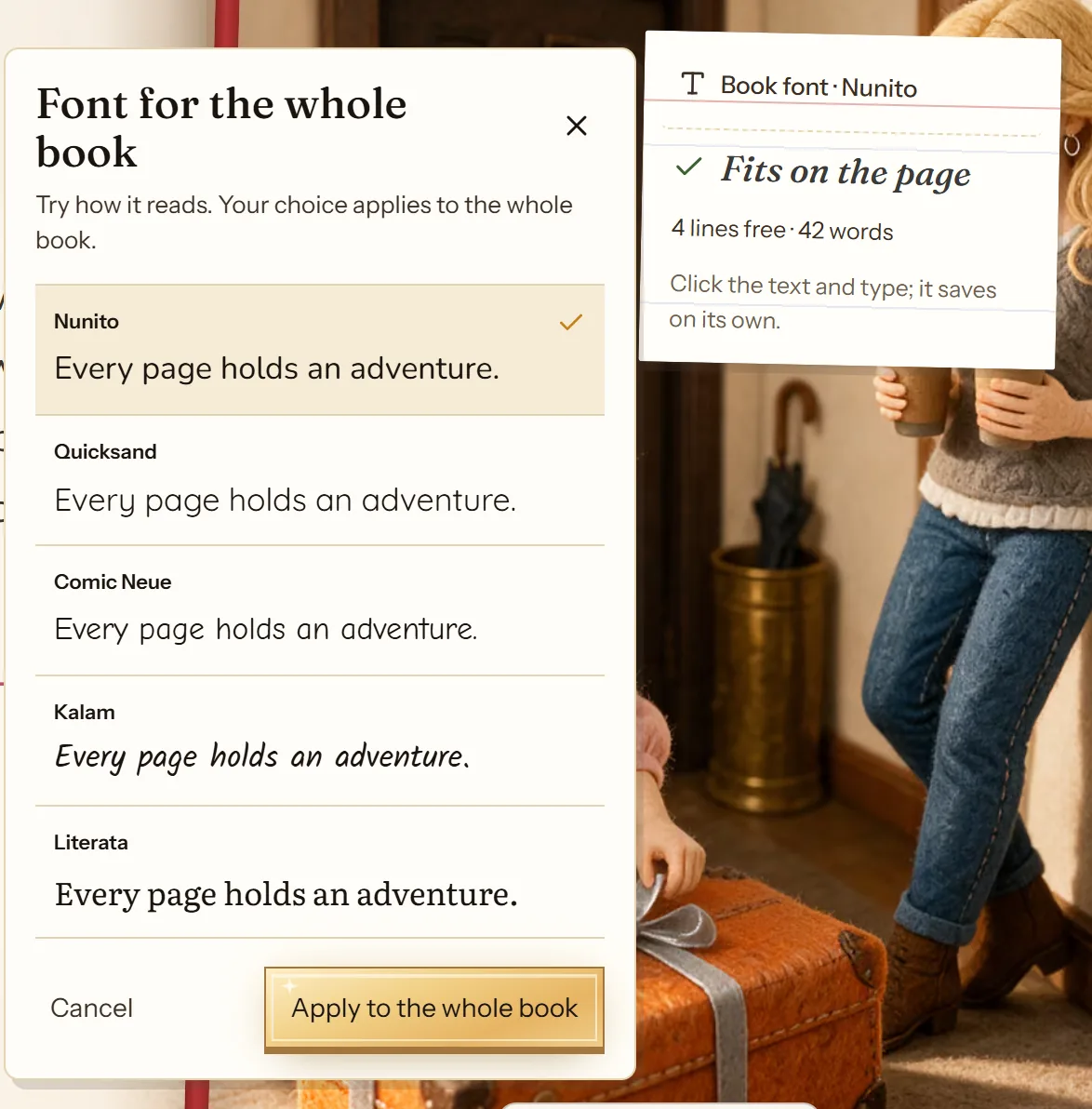
“Font for the whole book” opens a set of font samples: try how each one reads and apply it to the whole story. If you select a passage, you can change just its font or size, or make it bold or italic.
The dedication
It goes on the first page, under the title, and holds up to 300 characters. It saves on its own. If you leave it empty, that page shows only the title.
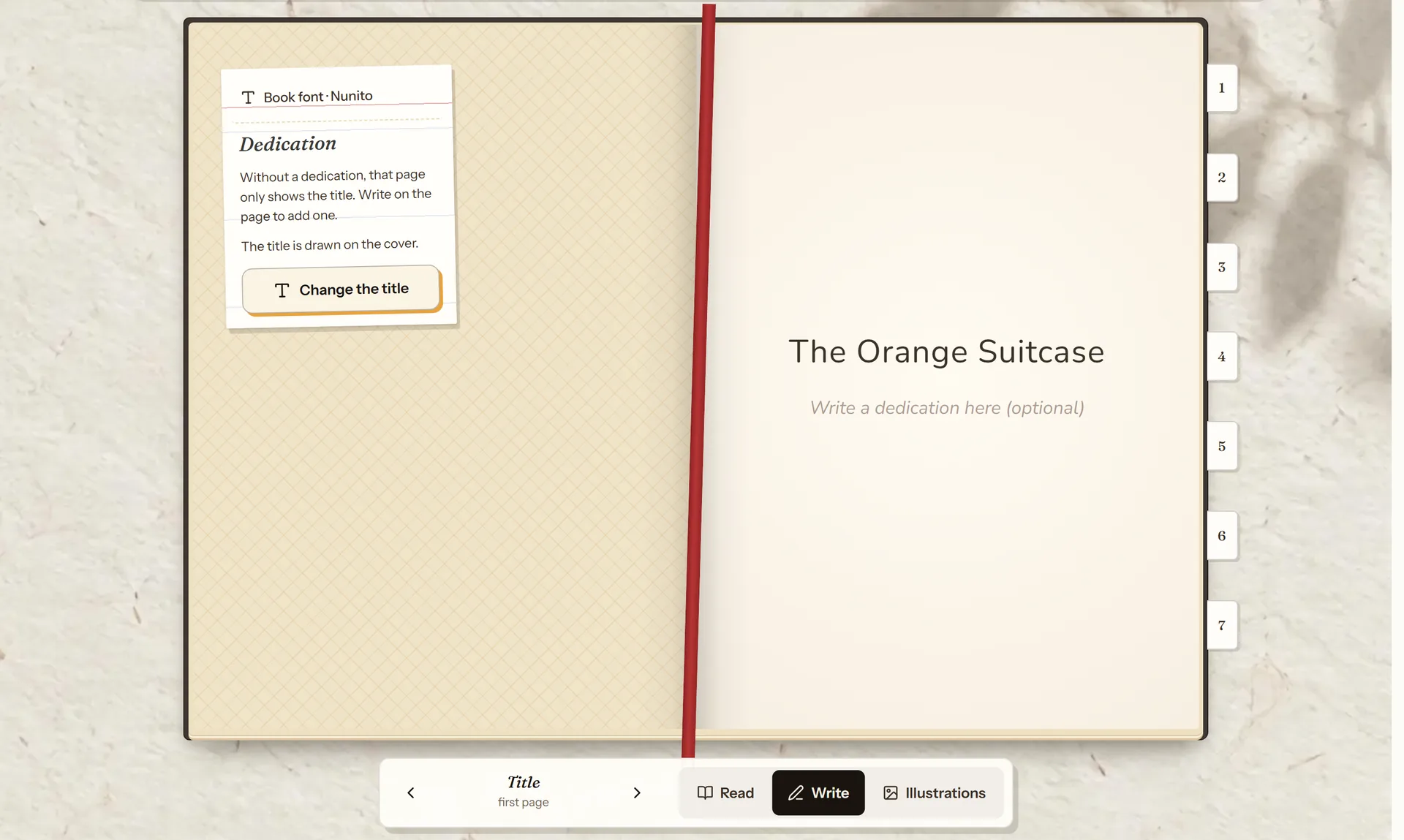
- The dedication goes here.
- “Change the title” re-letters the cover.
Who speaks in the narration
In narrated stories, “Speaker” lets you choose which character says each line. If you changed the text after it was narrated, “Narrate again” records the narration again with the current text. It uses 5 regenerations, and the previous narration keeps playing in the meantime.
An up-to-date PDF
When you are done, “Update PDF” builds the PDF with your changes in about a minute. If you leave the editor without pressing it, the PDF updates itself.
Frequently asked questions
Does changing the text cost anything?
No. Typing, changing the font or the dedication and updating the PDF use no regenerations.
Does the illustration change if I change the text?
No: the text and the illustration change separately. If you want a scene to follow the new text, use “Draw it again” with “Match the text on this page”. Change an illustration explains how.
More about this
Rewrite the text and redo the illustrations
Writing the text yourself is unlimited and costs nothing. The 10 regenerations per story are only for what the AI generates.
See how it works: Rewrite the text and redo the illustrations
Now you know how. Time for yours
All three modes cost the same: one story. If you get stuck on a step, this guide is still here.
Create my storyBack to the guide