Change the cover or the title
A new title without redrawing it, touch-ups with AI, a new cover from scratch or the one you had before.
In the editor, choose “Illustrations” mode and tap the cover. Its panel opens with four options.
The cover options
- Change the title: re-letters the cover with the new title and keeps the drawing. Uses 1 regeneration.
- Edit with AI: changes one detail and keeps the rest. Uses 1 regeneration.
- Draw it again: a brand-new cover from scratch. Uses 1 regeneration.
- Versions: brings back an earlier cover. Free.
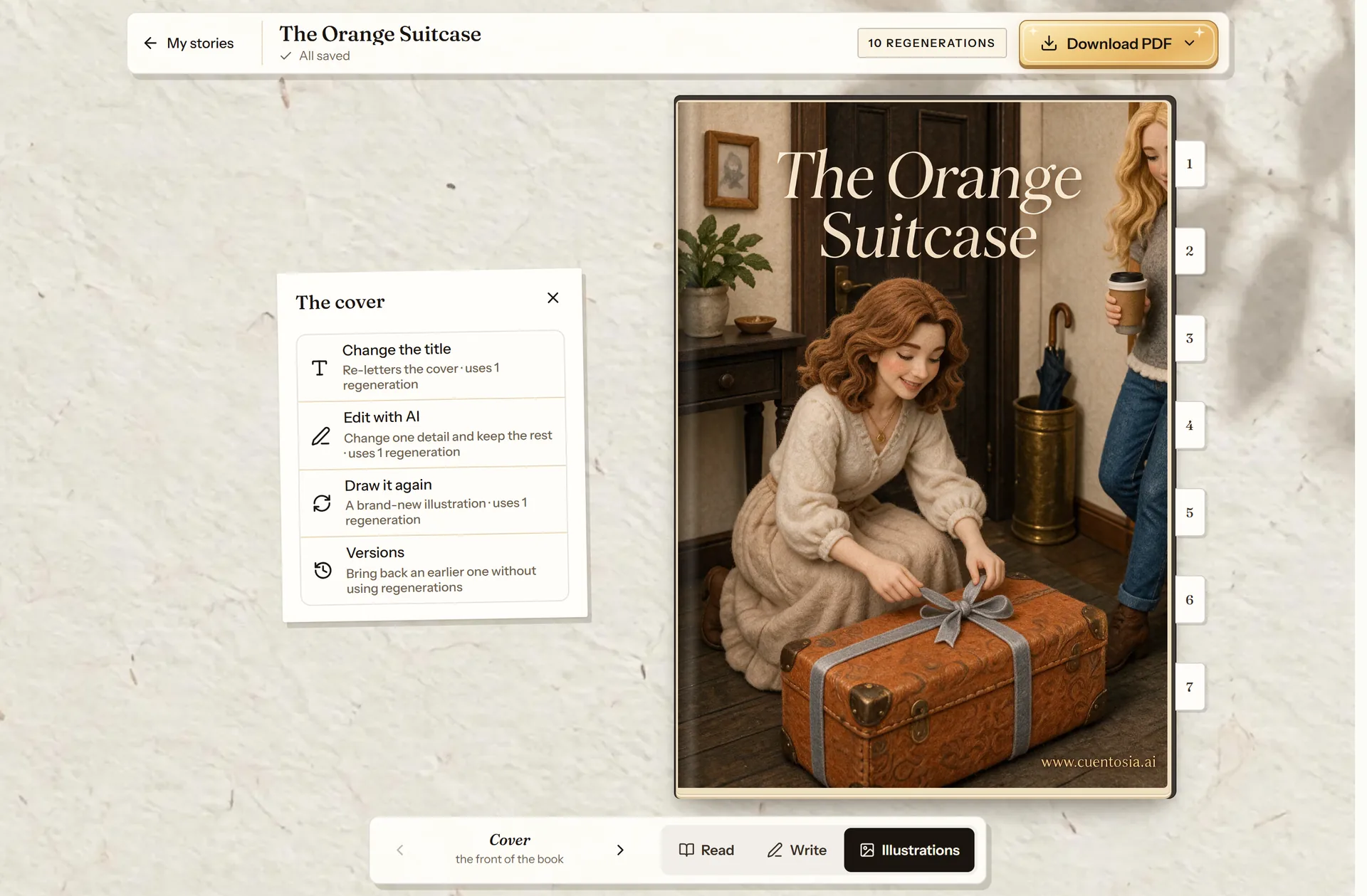
- Change the title.
- Edit with AI.
- Draw it again.
- Earlier versions, free.
Change the title
Type the new title and press “Change the title”. Only the title lettering on the cover changes, and it takes about a minute. If you don’t like the result, go back to the previous cover in “Versions” without using regenerations.
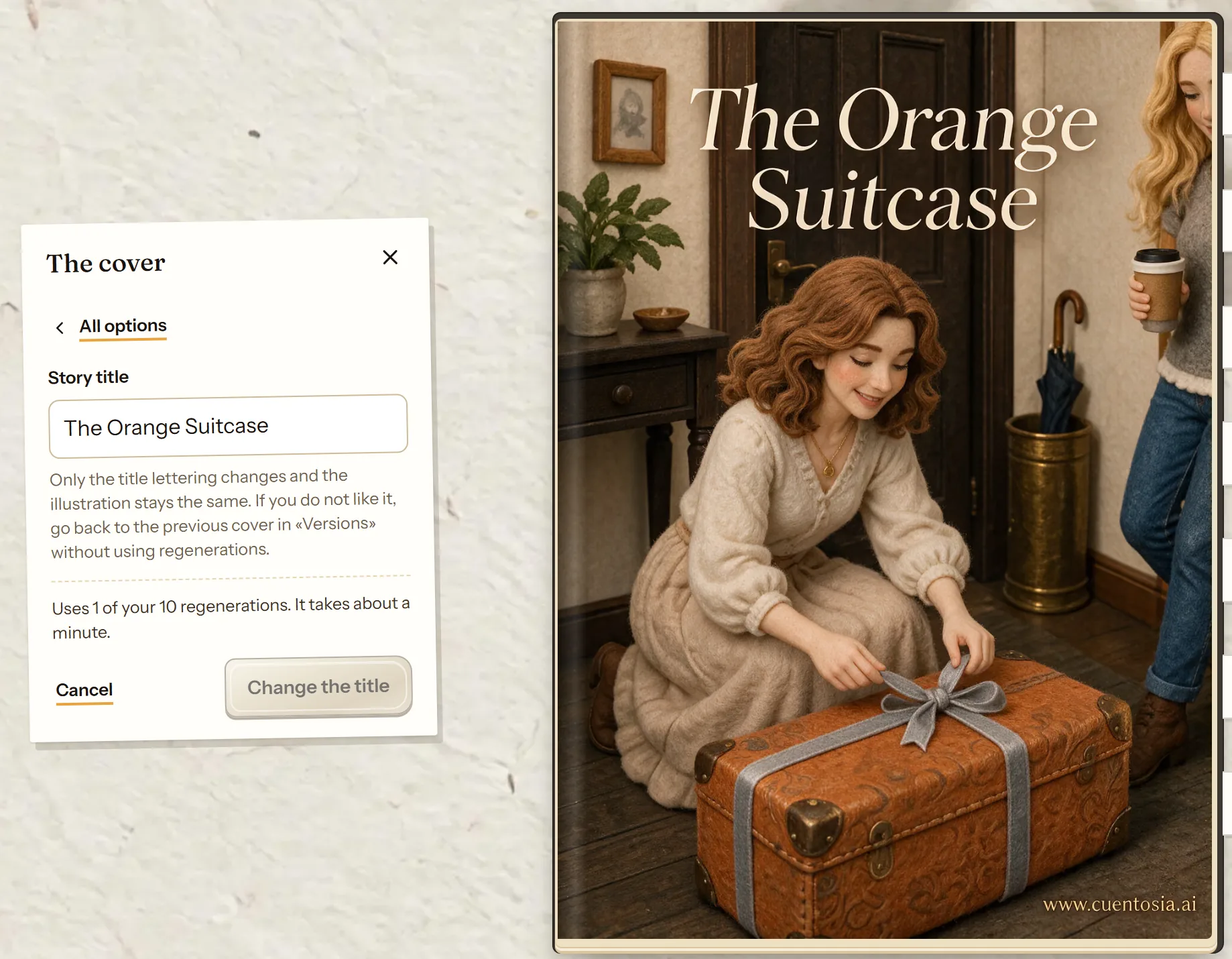
- The new title.
- What it uses and how long it takes.
- Confirm the change.
Go back to an earlier cover
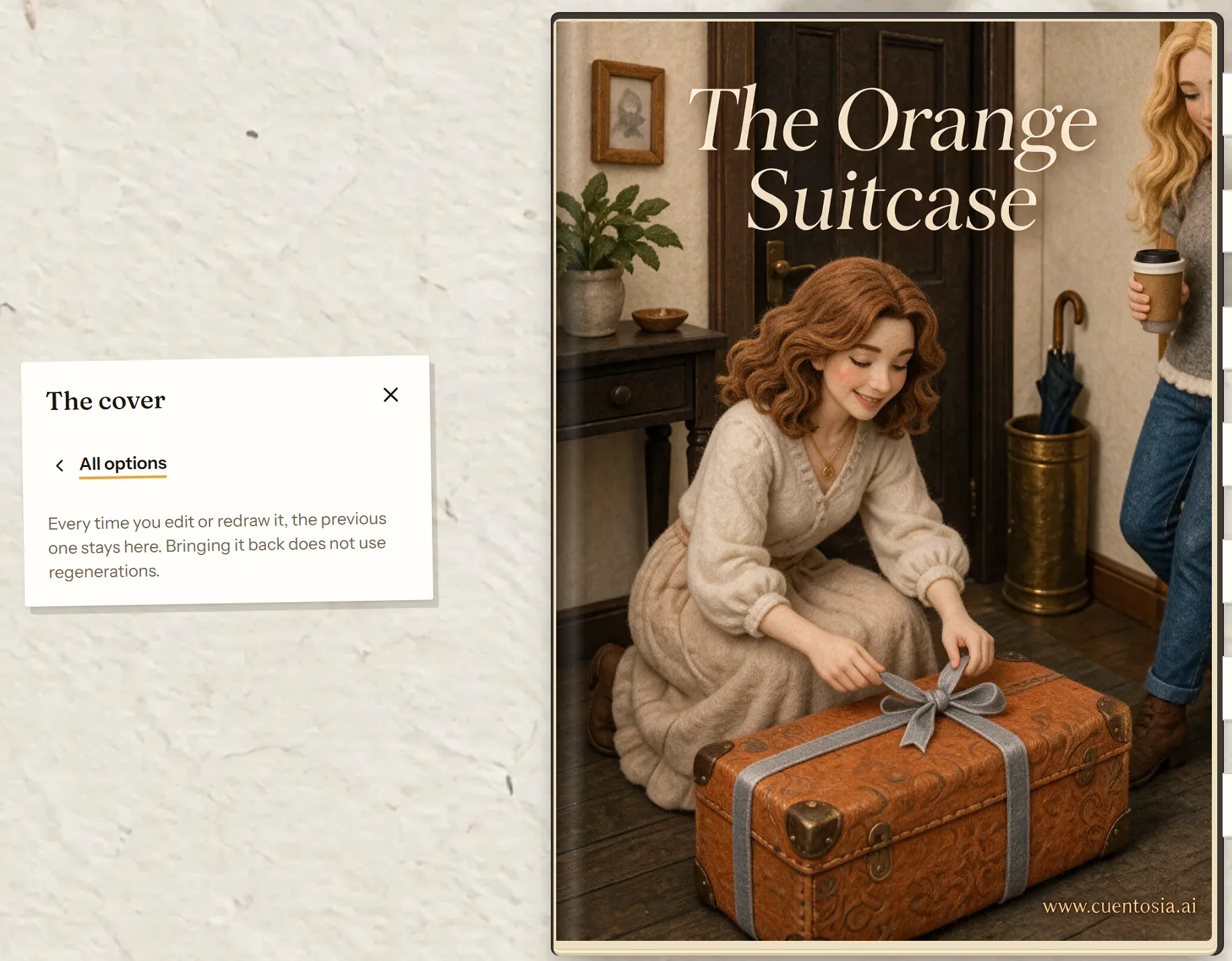
Every change keeps the previous cover in “Versions”. Tapping a thumbnail brings it back, for free.
The back cover
In “Illustrations”, tap the back cover to get the same options, minus the title: edit it with AI, draw it again or go back to an earlier version.
Frequently asked questions
How many times can I change the cover?
Each change with AI uses 1 of the story’s 10 regenerations (5 in the free gift story). Going back to an earlier version is free.
Can I change the author name?
Not from the editor: the author is set when the story is created. If you made a mistake, write through Contact.
More about this
Rewrite the text and redo the illustrations
Writing the text yourself is unlimited and costs nothing. The 10 regenerations per story are only for what the AI generates.
See how it works: Rewrite the text and redo the illustrations
Now you know how. Time for yours
All three modes cost the same: one story. If you get stuck on a step, this guide is still here.
Create my storyBack to the guide